uclog: GUI, TUI and command line
One program, uclog, for Linux, macOS and Windows: a native window, a terminal UI, and small
commands for scripts. Every command takes -d for the device (addresses)
and -l for logdata files; -v logs more, -vv adds a hex trace of every byte.
uclog gui
uclog gui                                      # connects when exactly one device is found, else opens Connect
uclog gui -d tcp://lab-pc:9000 -l build/app.elf --files-dir ./files
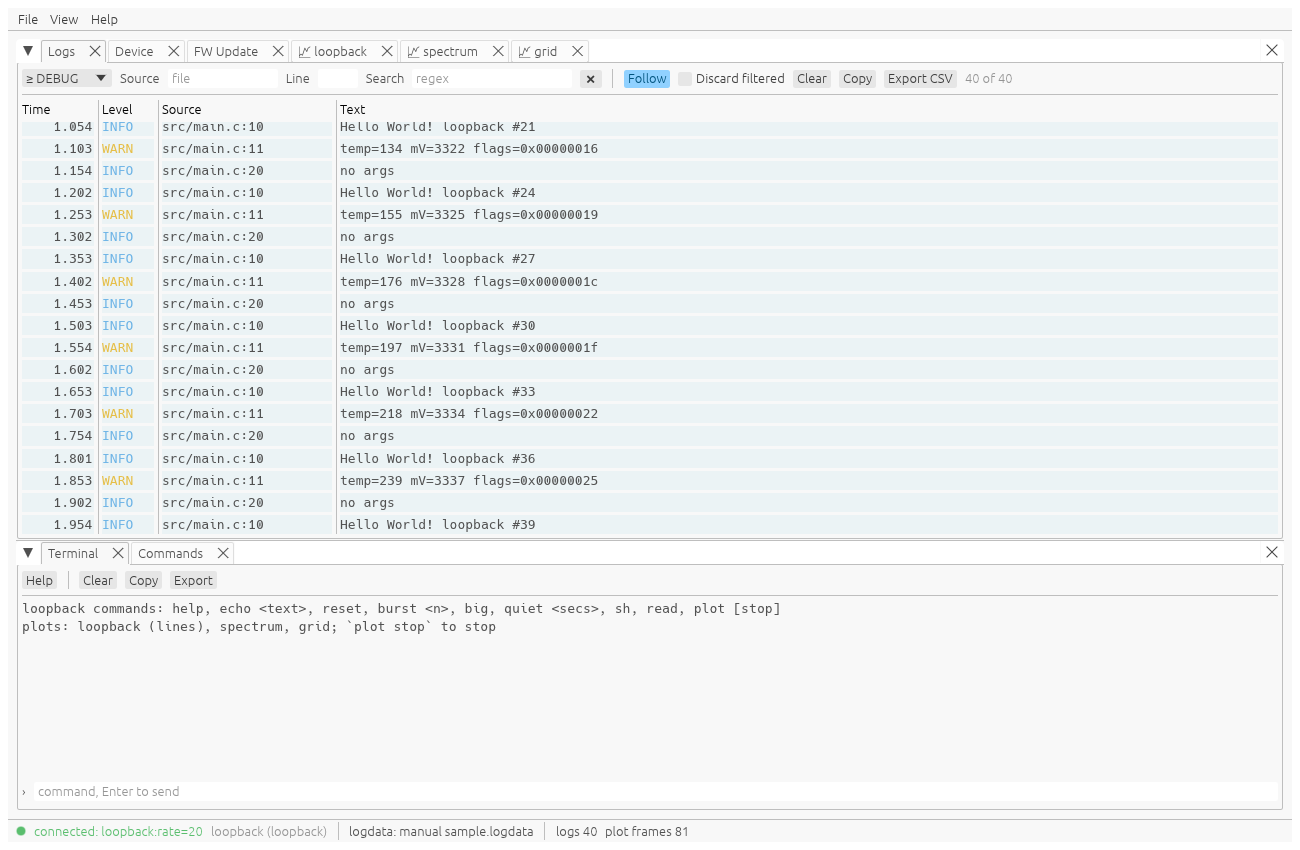
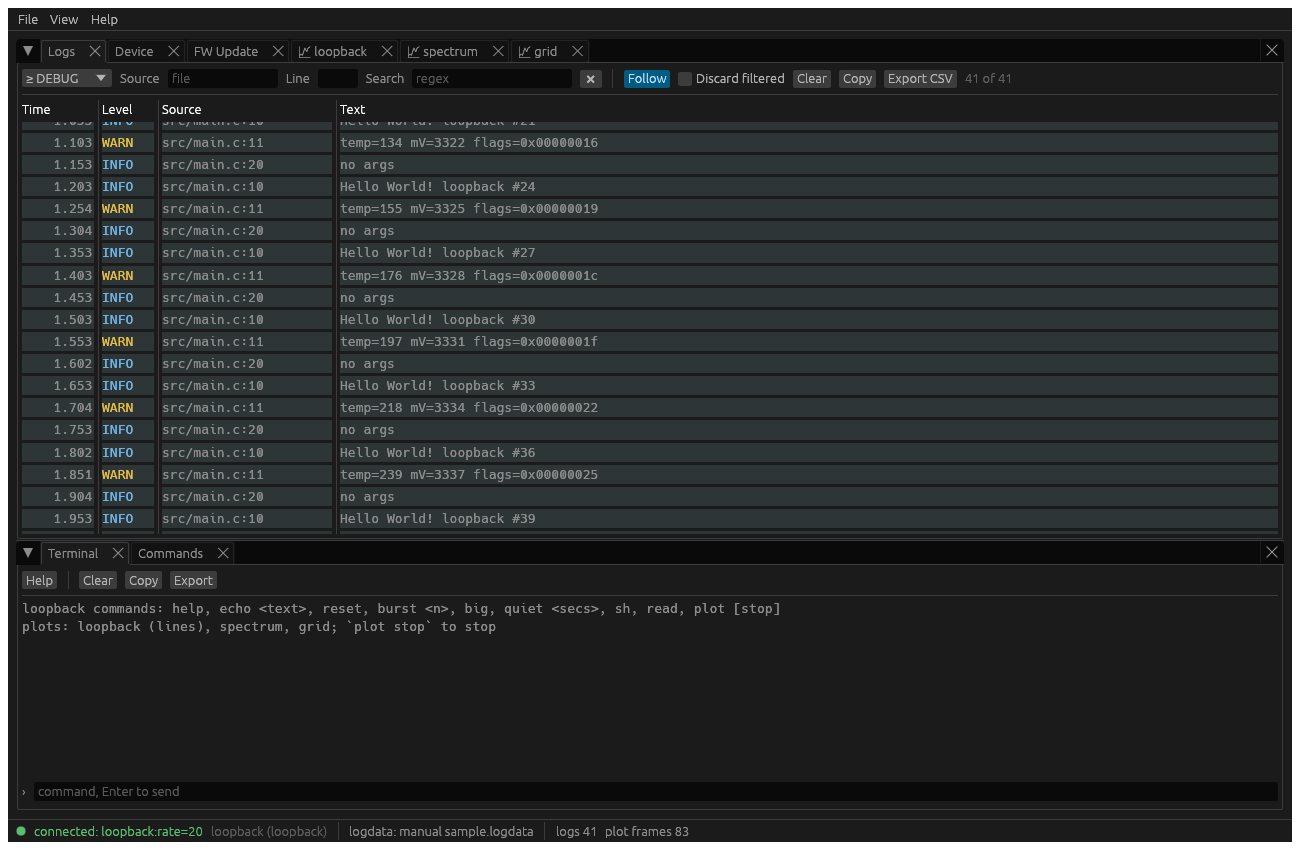
- Views, as tabs you can split, float and rearrange (the layout is kept): Logs, Terminal, Commands, Device, FW Update, and one tab per plot.
- Logs: filters for level, source, line and a regex; follow, Discard filtered, copy and CSV export. Double-click a row to show only its source; right-click for more, and to colour a source.
- Terminal: ANSI colours, history and buttons; the device's
printf()(semihost) appears here. Character mode sends each key at once, Ctrl keys and arrows included, for a shell on the device. - Commands: buttons from the settings, and a free line (text, or JSON sent as CBOR).
- Plots: up to three y axes, cursors with Δx, markers, heatmaps; CSV export.
- Device: what the device reports, the logdata in use, counters. Load logdata… also keeps the file in the cache for next time.
- File menu: Connect (⌘K), Load logdata (⌘L), Screenshot, Export all (⌘E), Settings (⌘,).
uclog tui
uclog tui
uclog tui -d serial:/dev/ttyACM0 --plain | grep ERROR    # lines: ts:level:file:line:text
uclog tui --json --level WARN > warnings.jsonl           # one JSON record per line
uclog tui --plot-csv plots/                              # plot data to CSV files
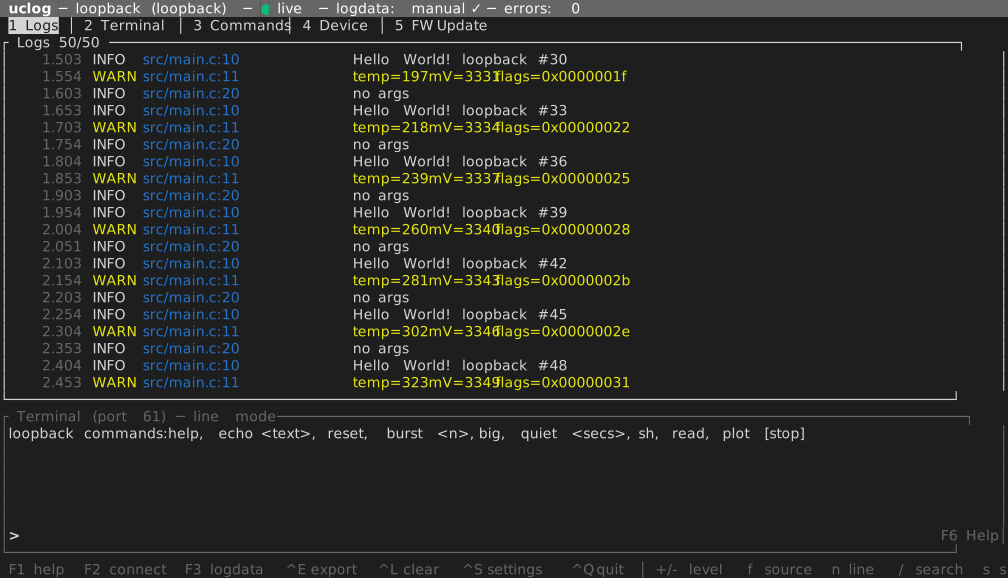
- Views: 1 Logs (with the terminal below), 2 Terminal, 3 Commands, 4 Device, 5 FW Update. Alt+1–5 switches from anywhere; Esc leaves the terminal.
- F1 help, F2 Connect (devices, hubs, a Bluetooth scan, an address), F3 load logdata, Ctrl+S settings, Ctrl+Q quit.
- Logs:
+/-level,fsource (s: the selected row's),nline,/regex;ppause,ddiscard filtered,ccopy, Ctrl+E CSV. - Terminal: line mode with history; Ctrl+T for character mode (each key sent at once).
- A device that goes away is reopened every second until it is back.
- With
--plainor--json(or when the output is not a terminal) it streams instead of drawing a UI.
Commands
| Command | |
|---|---|
uclog list [--json] [--ble-scan 5] |
devices, hubs on this machine, and hubs on the network (mDNS) |
uclog term [-c LINE] [--exit-after S] [--raw] [--logs] |
the device's terminal (port 61) in this terminal; -c sends lines and --exit-after ends, for scripts |
uclog decode -l app.elf capture.bin |
decode a raw capture of the device's bytes (- for stdin) |
uclog fw-update -d auto app.signed.bin |
update the firmware (port 59, else port 3) |
uclog hub -d auto |
share the device: the hub |
Settings
The GUI and TUI share settings.json: buttons, history, colours, the logdata service and the
files folder. It is in ~/.config/uclog/ (Linux), ~/Library/Application Support/ca.unitcircle.uclog/
(macOS) or %APPDATA%\unitcircle\uclog\config\ (Windows); --config uses another file. The
logdata token is kept in the OS keyring, not in the file (Logdata).
For scripts and CI, options can come from the environment instead: UCLOG_DEVICE,
UCLOG_LOGDATA_DOMAIN, UCLOG_LOGDATA_TOKEN, UCLOG_LOGDATA_URL and UCLOG_CACHE_DIR. The
command line wins over the environment, which wins over the settings.
Platform notes
- Windows, Bluetooth: throughput depends on the adapter's driver: one adapter went from about 28 to 82 kB/s with its maker's current driver. Windows Update's is often years old.
- WSL2 has no USB or Bluetooth: run a hub on Windows (or another machine) and connect to it by
address; mDNS does not reach into WSL. There is no keyring either: give the token with
--logdata-tokenorUCLOG_LOGDATA_TOKEN. - Linux: the GUI needs a desktop (X11 or Wayland); the TUI and commands do not.